Features
What WorkVigil does, area by area
Beside Home and My Work, the product has six areas: Work, Workflow, Evidence, Collaboration, Analytics and Administration. This page follows them in that order.
Some capabilities are add-ons for larger organisations: see Add-ons.
Work
Projects, tasks, recurring work and templates, and a page of their own for each member: my tasks, my approvals, my calendar.
Tasks and projects on one board
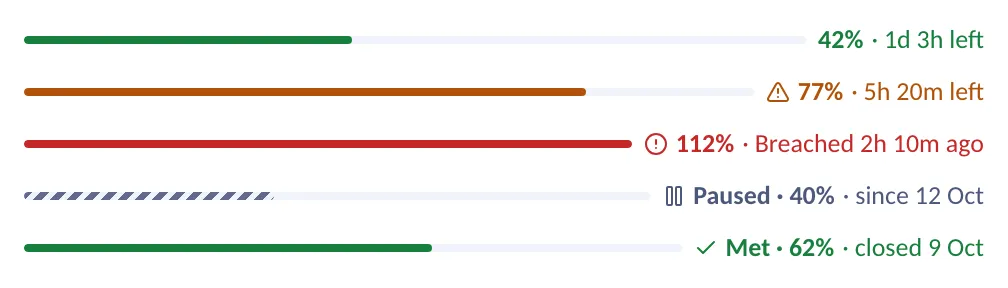
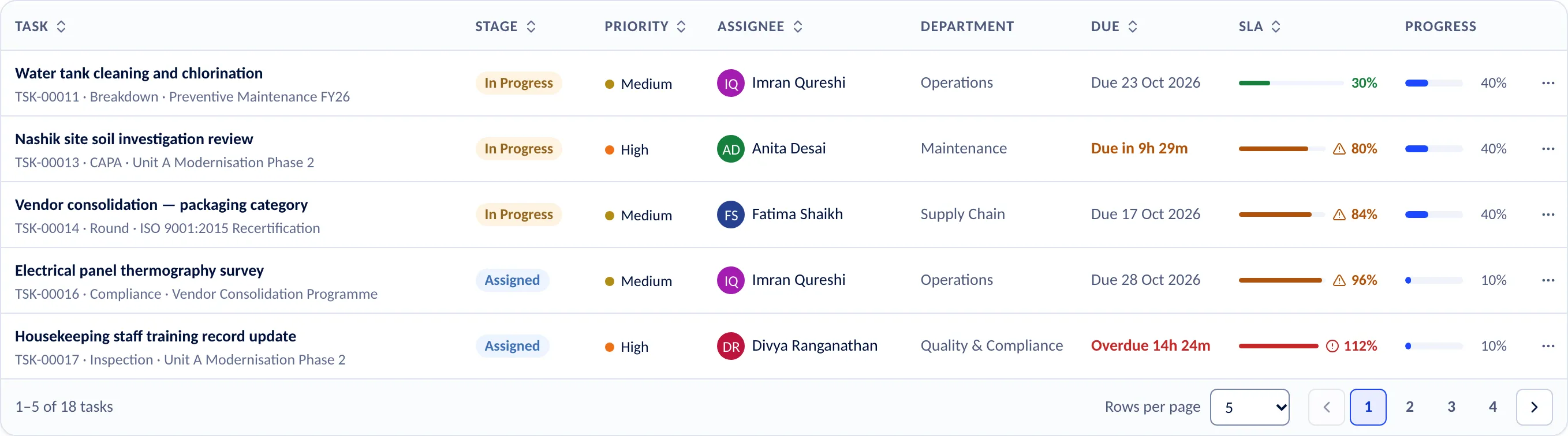
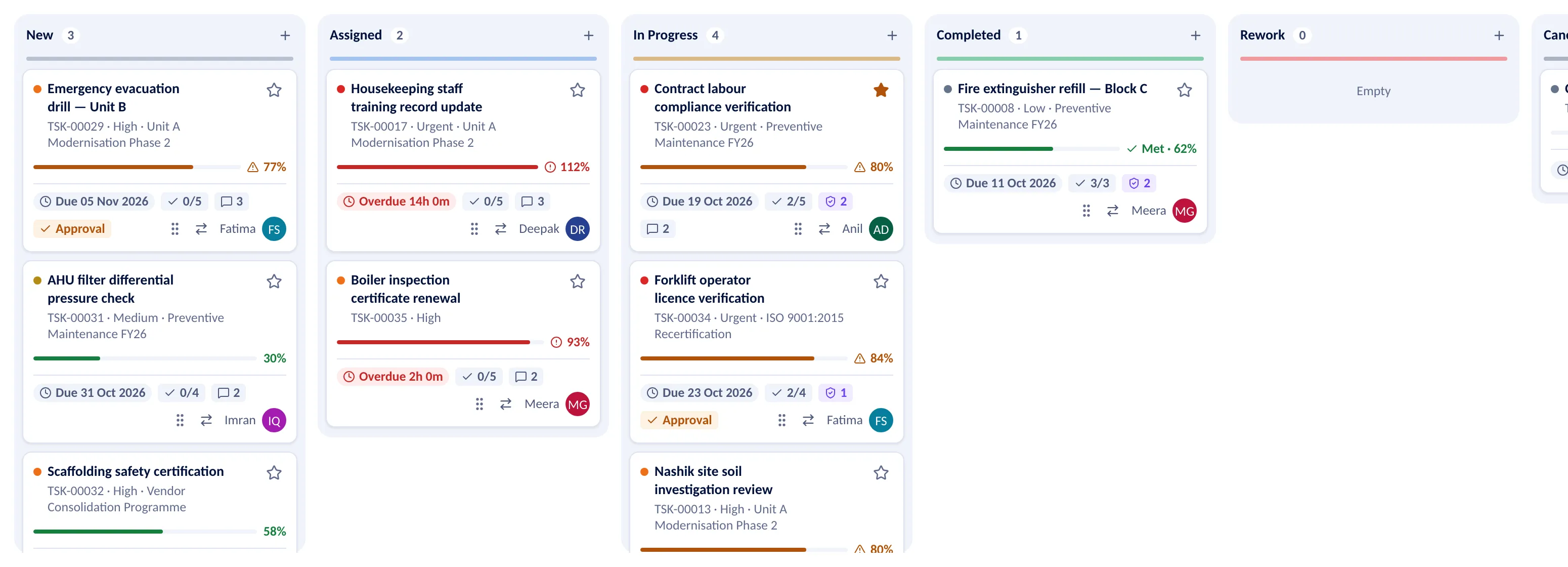
Plan the work in projects, hand it out as tasks and follow each one from New to Completed. A card shows when the task is due, how much of its checklist is done and how much of its SLA is used.
- Seven views of the same tasks: kanban, list, calendar, Gantt, pivot, chart and activity
- Projects with milestones, a team, dependencies and a health state
- A card can only be moved to a stage its lifecycle allows


Routine work that raises itself
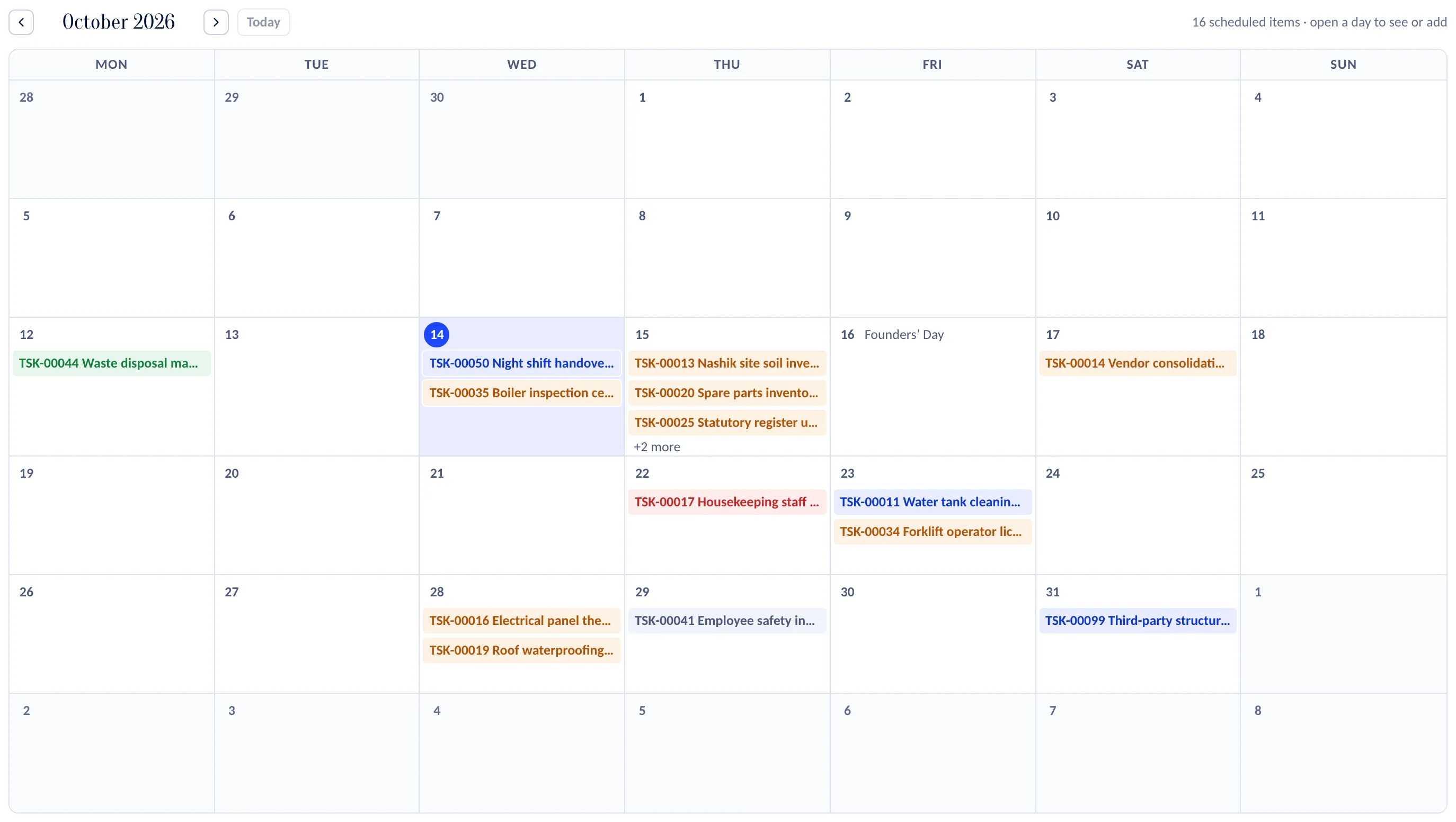
A daily round, a weekly audit or a monthly renewal is set up once, as a rule. WorkVigil creates each task on schedule and assigns it, and the calendar shows what falls due on which day.
- A rule sets the schedule and the assignee, and shows its next run
- The next task comes from the schedule, not from closing the last one
- Non-working days of your work calendar can be skipped
- “Generate now” when a round is needed today


- Kanban, list, calendar, Gantt, pivot, chart and activity show the same tasks and share one search, one set of filters, grouping and sorting. The page address keeps the view and the filters, so a link opens exactly what you were looking at. From any other page, Ctrl or Cmd + K finds a task or a project by its number or by part of its title.
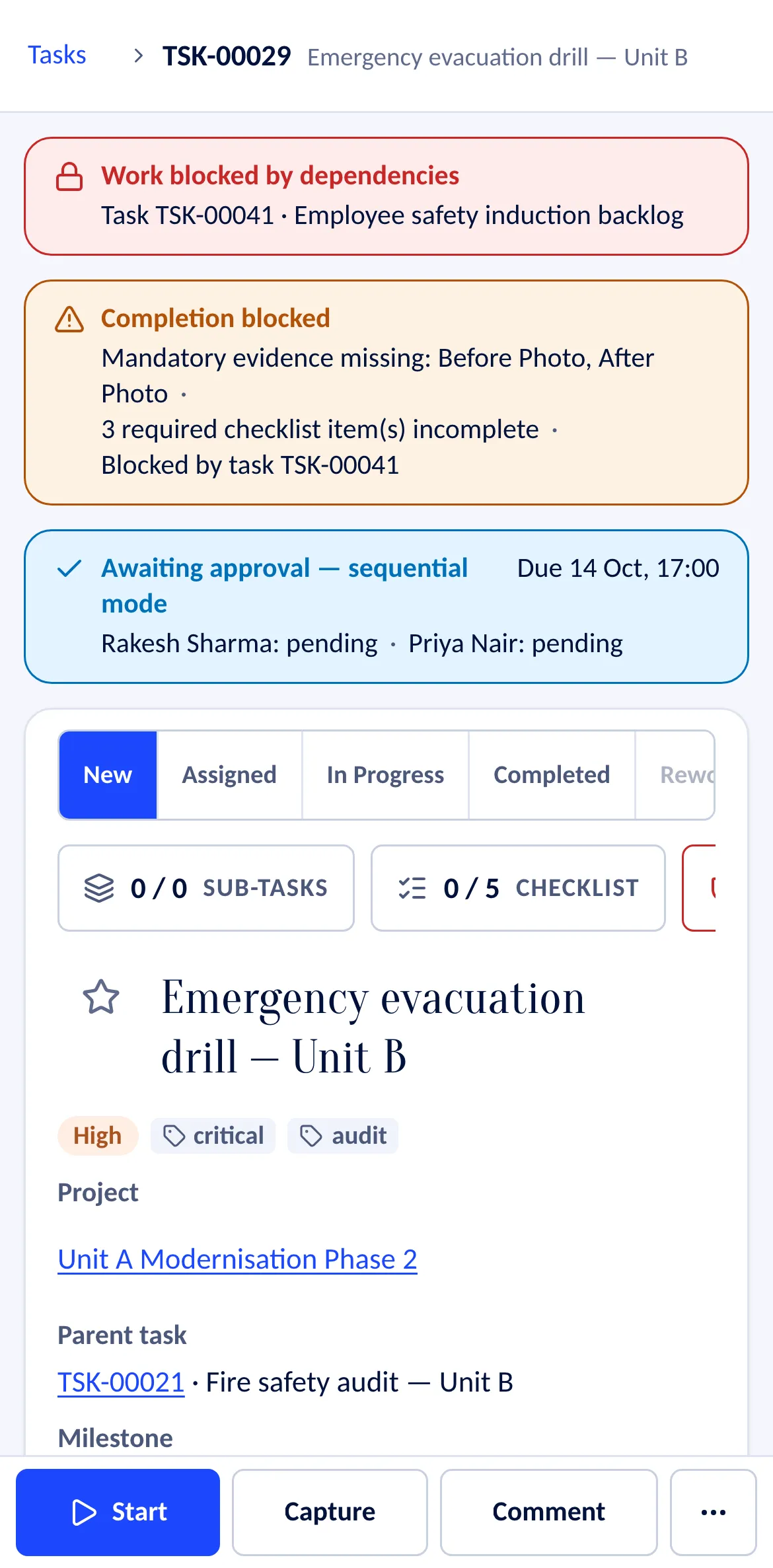
One record for everything about a task
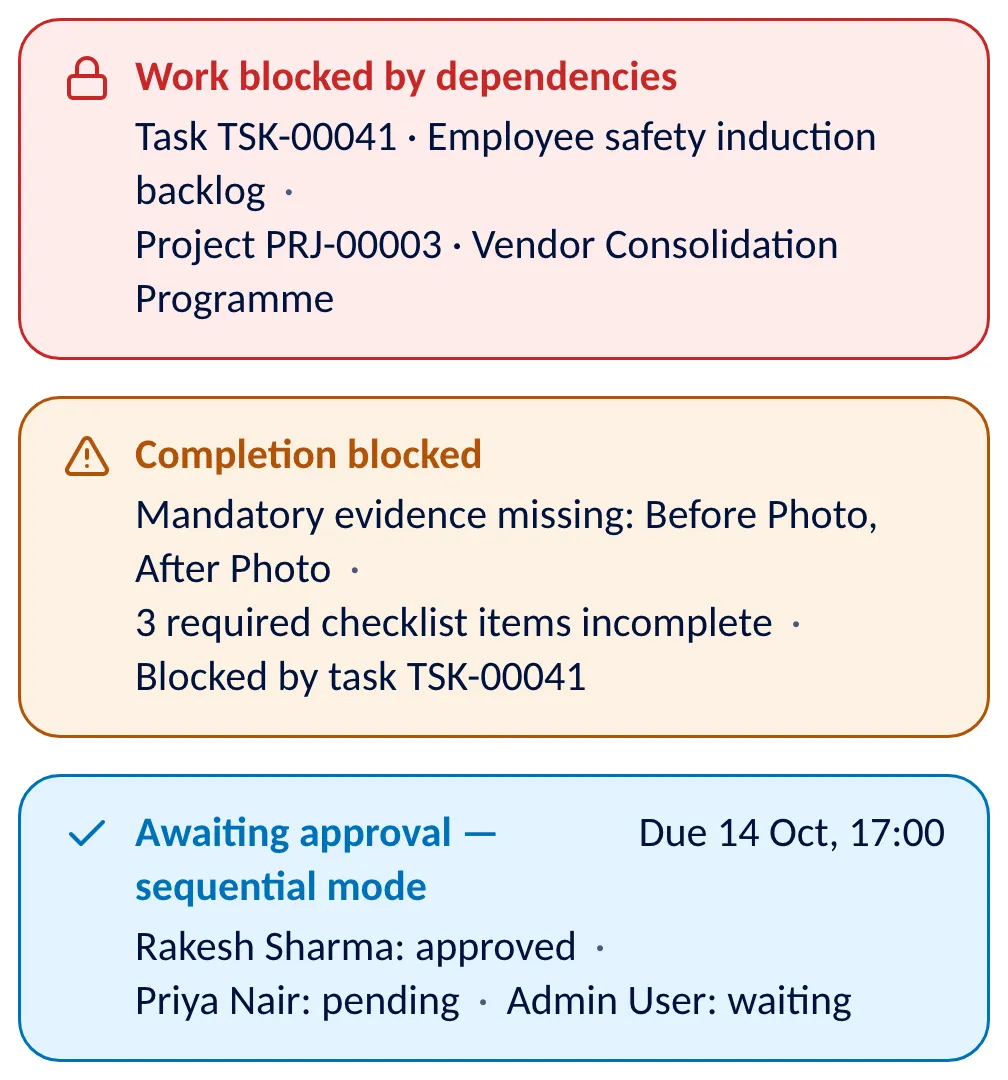
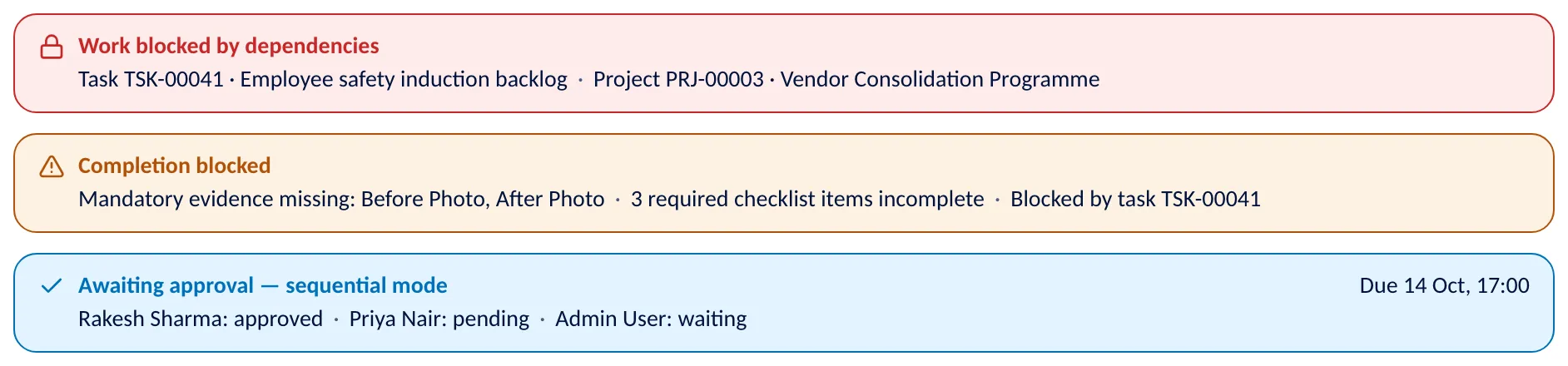
The stage bar, counters for sub-tasks, checklist, evidence, documents and SLA, the fields, and tabs for the details. Banners at the top say what blocks the work, what is missing before it can be completed and who has to approve. Checklist items can be marked as required, time is logged against the task, and a task can wait for another task or a project.Projects with milestones and health
A project holds its tasks, milestones, team and timeline. Health means the same on every screen: on track, at risk when tasks are overdue, off track when the planned end has passed with work still open. A project cannot be completed while it has open tasks.A Gantt chart with dependencies
Tasks, projects and milestones on a timeline, with dependency arrows, zoom and a marker for today. On a phone the same plan reads as a list with small bars, and says in words what a task is blocked by.Templates for tasks and projects
Save a task as a template, apply a template’s checklist to a task, or start a whole project from a project template with its milestones and tasks. A standard project template is in the workspace from the first day.My Work for every member
My Tasks, My Approvals, My Calendar and My Performance: a person’s own tasks — sub-tasks included, shown with their parent — the decisions waiting for them, their agenda and their figures.
Workflow
The rules a task follows: who approves it, how long it may take, who is told when it takes longer, and what happens without anyone pressing a button.
Approvals that follow your matrix
The approval matrix says who approves which kind of work. A request carries its own number, each approver’s decision is recorded, and a rejection needs a reason. When a task was submitted for closure, the approval completes it.
- Three modes: all must approve, any one approves, or in sequence
- My Approvals: what I must decide, what I asked for, what I decided lately
- One open request per task; the person who asked can withdraw it


SLA clocks that follow the task
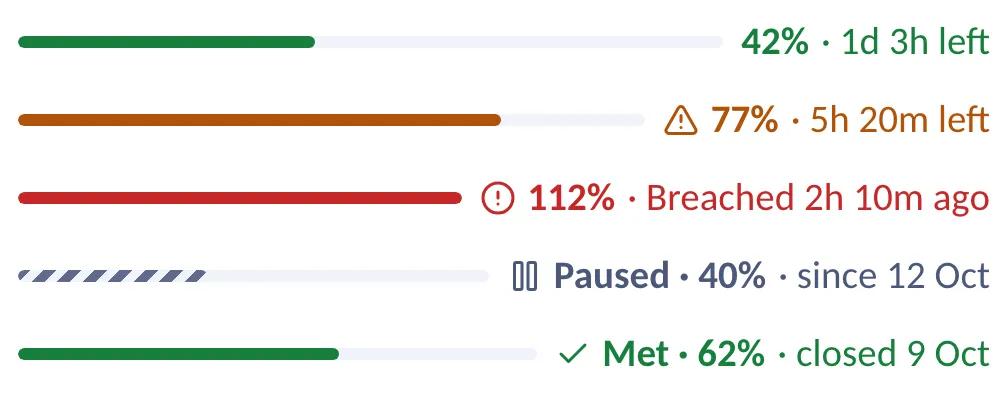
An SLA policy sets how long a kind of work may take and when its clock starts: when the task is created, assigned or started. Nobody can start or restart a clock by hand, so the compliance figures show what happened.
- Several clocks per task: response, resolution, approval and more
- A policy can count working hours only, on your work calendar
- Pause and resume with a reason, which is kept in the task’s history
- The SLA monitor shows the clocks that are at risk or breached


Escalations by level
The escalation matrix names who is told at each level, before a clock runs out and after it has. A person can also escalate a task at once. An escalation reaches the holders of a role in the task’s own company or department, not everyone who has that role.Completion that checks itself
“Mark as done” checks the rules first: the attached form is submitted, the required evidence is there, the approval is given. When something is missing the task says what, and stays open.A lifecycle the board respects
Stages have rules. Completed work can only go back to rework, cancelled work can only be reopened, and a board disables the columns a card may not enter while it is being moved.Automation rules
A rule is a trigger, conditions and actions: when urgent work is created, notify the department heads and tag it; when an SLA is breached, tell the business head. A rule passes the same checks as a person, the task’s history shows that automation acted, and every run is kept with its result.
Evidence
Proof that the work was done, the documents around it and the forms that give it a structure.
Proof captured where the work happens
The person on site opens the task on a phone and records what was done. A task can demand evidence — two photos, a reading, a signature — and it cannot be completed until that evidence is there.
- Eight kinds: photo, video, audio, signature, GPS location, scan, document and reading
- Before and after photos, compressed on the phone before they are sent
- A reviewer approves or rejects each item; rejected items do not count

Evidence a task has to carry
A task can require a minimum number of items of each evidence type, and the types are yours to define. Once the task is completed, its evidence and its checklist are locked.An evidence register and a media gallery
The Evidence page lists every item with its type, its task, who captured it and its review status, and names the tasks that are blocked by missing evidence. The Media page shows photos, videos, audio, scans and signatures as a gallery.Documents with versions
A library with folders. A document keeps every version that was uploaded and can be linked to the tasks it belongs to.Forms and checklists
Build a form once and attach it to the work that needs it. Editing a published form makes a new version, and a submitted form is corrected by a new submission, so what was handed in stays as it was.Files stored privately
Every upload is checked for its type and size and stored privately. A file is only ever served as a download.
Collaboration
The conversation stays with the task, and the people a task needs are told when it needs them.
A discussion on every task
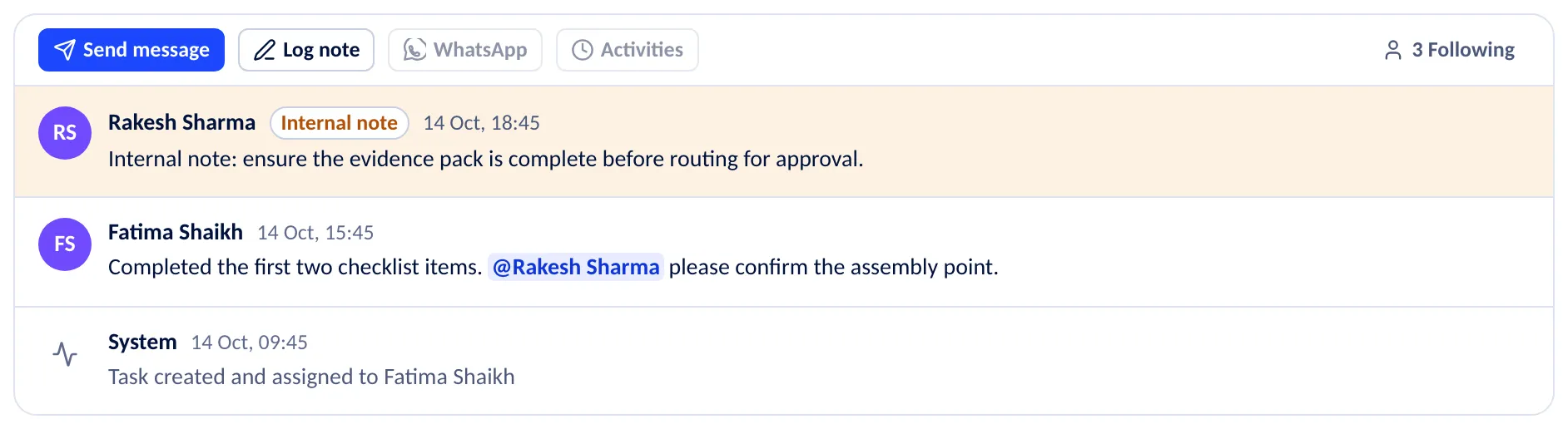
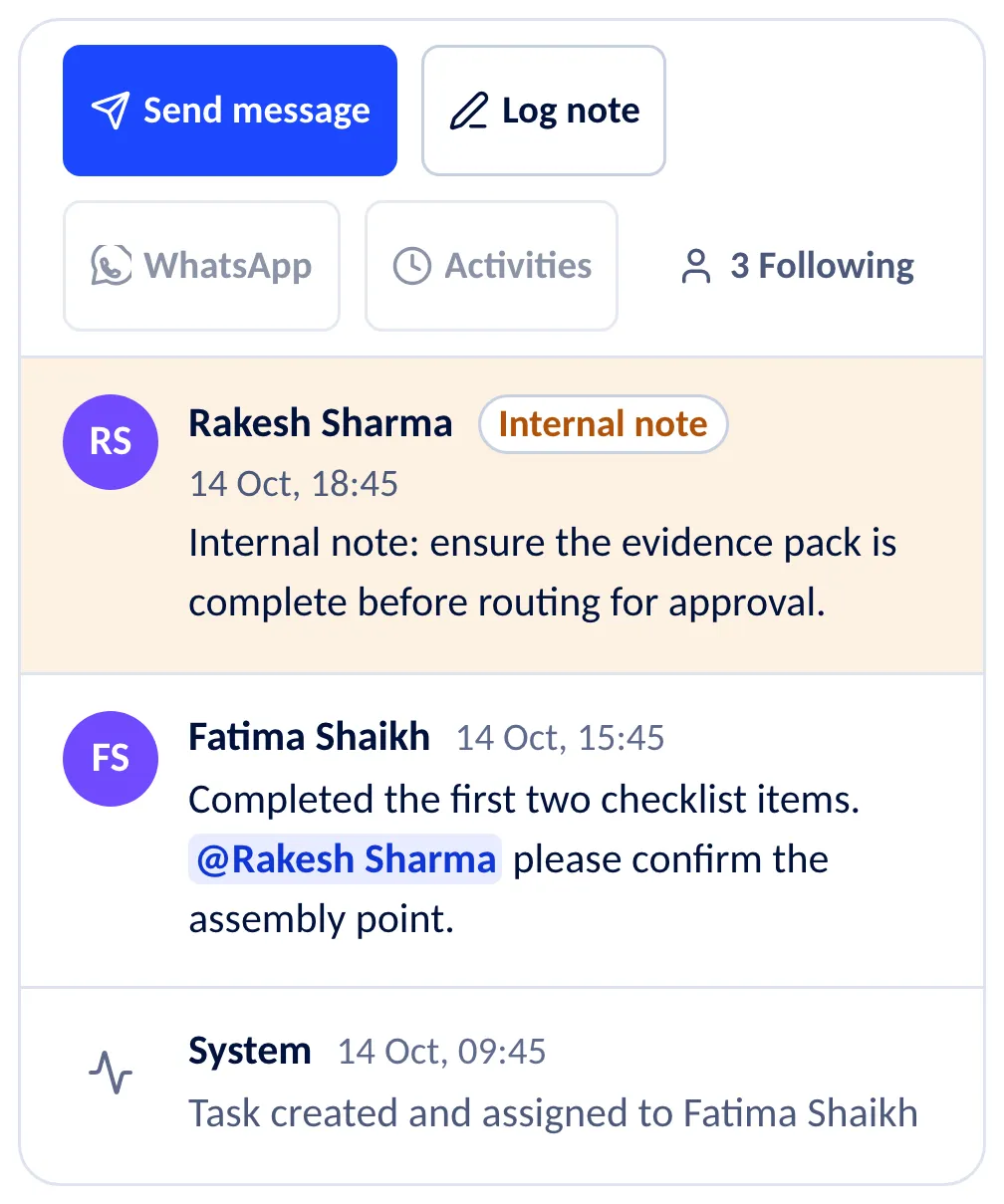
Messages, internal notes and mentions sit beside the task, together with an entry for each thing that happened to it: assigned, stage changed, approval requested. The people who follow the task are told.
- Mention a colleague with @ to notify them
- Internal notes are marked apart from messages
- Starring a task also follows it


Notifications in the app and by email
A bell with a count, a Notifications page, and the Alerts tab on the phone. Each person chooses which notifications reach them and by which channel; an administrator can switch a kind of notification off for the whole workspace.Email from the task
Send a colleague an email from the task. It appears in the task’s discussion with its delivery status. Messages go to members of your workspace, and the Email page shows administrators every message that was sent.
Analytics
What was done, how fast, and where work is stuck — counted by the server from the same records the teams work in.
The numbers behind the work
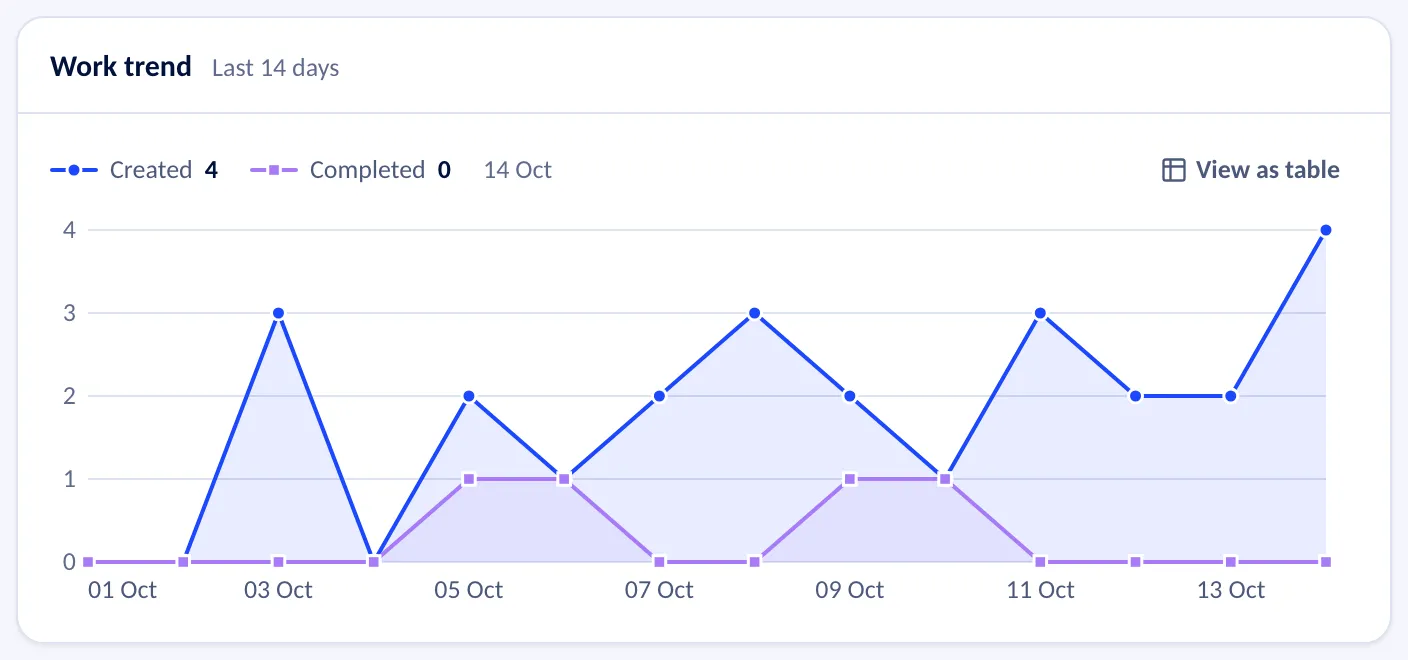
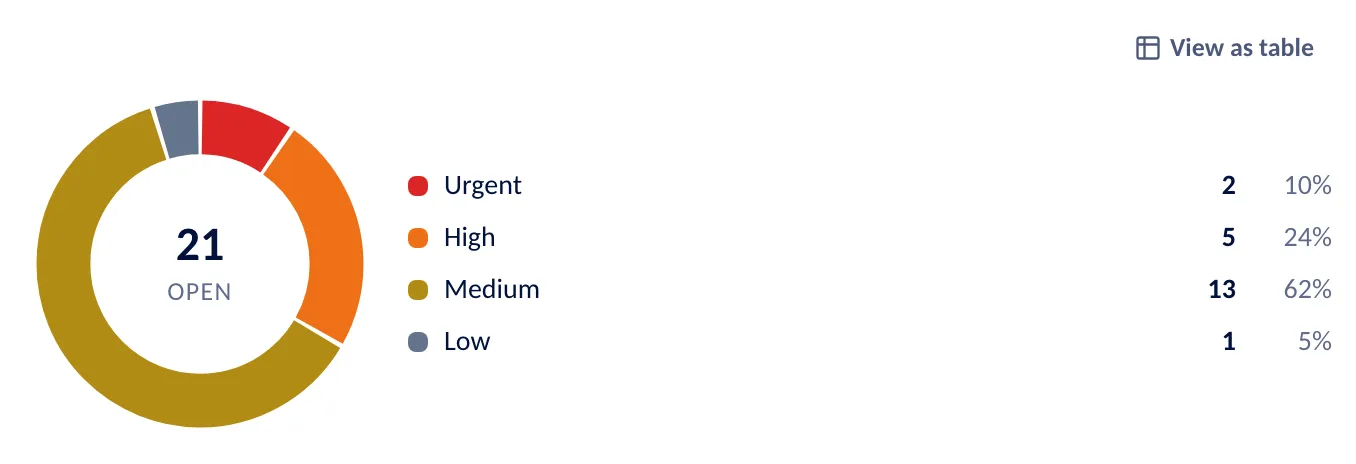
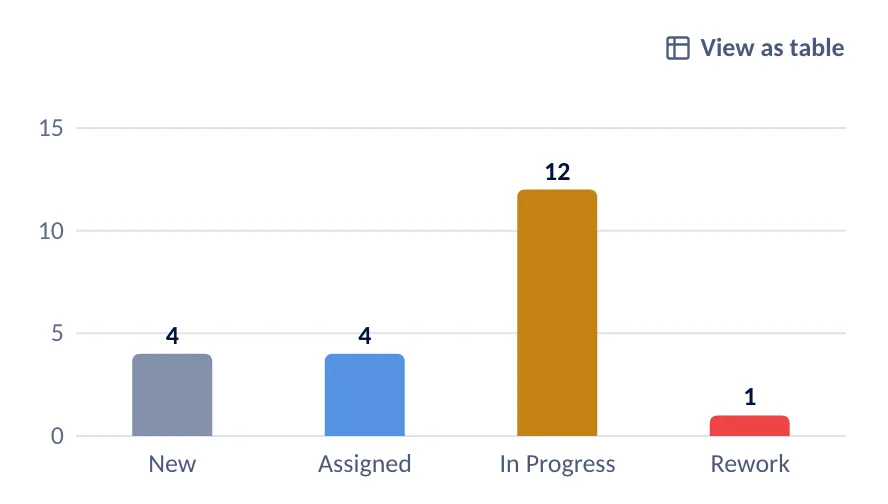
The home dashboard opens with what needs attention today. The analytics pages go further: tasks by stage and priority, SLA compliance for each clock, and the productivity of people and departments.
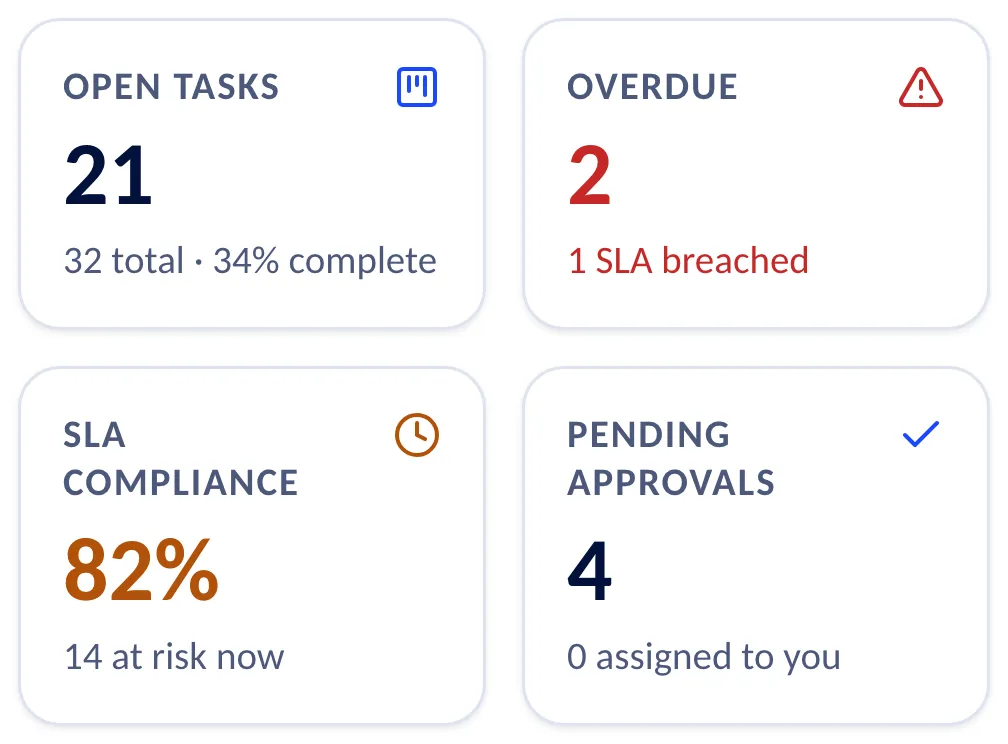
- Tiles for open and overdue work, SLA compliance and pending approvals
- Pivot tables with the rows and columns you choose
- Dashboards you build and arrange yourself


Tasks analytics
Pivot tables whose rows and columns you choose, and charts — each with a table of the same numbers behind it.SLA analytics
Compliance is counted for each clock, not once per task, so a late response is not hidden by a resolution that was on time.Productivity and My Performance
The Productivity page reports on people and departments: completed work, the load of the coming week, timeliness, SLA, rework and hours logged. My Performance shows each member their own figures, and a comparison with colleagues only to the roles allowed to see it.Dashboards you build
Put the tiles, charts and tables you need on a dashboard, arrange them, rename the dashboard or delete it.Exports
Tasks, SLA figures and the audit trail can be exported with the filters that are set. Each export is written to the audit trail.
Administration
Set the organisation up once: its companies and people, who may do what, and the words and numbers your teams already use.
Several companies, one workspace
A group runs its companies, departments, locations and teams in one workspace. Every task carries its company and department, people see the work their role and their unit allow, and whoever changes something is on record.
- Nine standard roles, and your own, set in a permission matrix
- Three reaches of visibility: everything, my units and projects, or only my own work
- A permanent audit trail of changes, sign-ins and exports


Organization
Companies, departments, locations and teams as a tree, with work calendars and holidays. A member who belongs to several companies switches between them or looks at all of them at once.Users
Invite people by email, give them roles and assign them to companies and departments. Each person changes their own name, phone number and password; deactivating a user ends their sessions.Roles and permissions
Nine standard roles, from Administrator to Field Executive. Copy one to make your own and set its permissions in a matrix of resources and actions. The screens hide what a person may not do, and the server checks every request again.Configuration and billing
Your own stages, priorities, task types, evidence types, tags and numbering — the vocabulary your teams already use. On the billing page the administrator sees the plan, the users and storage in use and the invoices, and can change the plan or cancel.Webhooks
Send the events of your workspace to another system as signed requests, repeated when the other side does not answer. Deliveries that keep failing are listed for an administrator, who can retry them.Audit trail
A permanent record of who changed what and when: records, configuration, roles, sign-ins and exports. Deleting a task, a document or a piece of evidence archives it, and the deletion itself is on record.
Desktop, tablet and phone
WorkVigil is one web application: the same address on every device, each screen laid out for the device in hand. It runs in the browser and needs a connection; there is nothing to install.
My Work on the phone
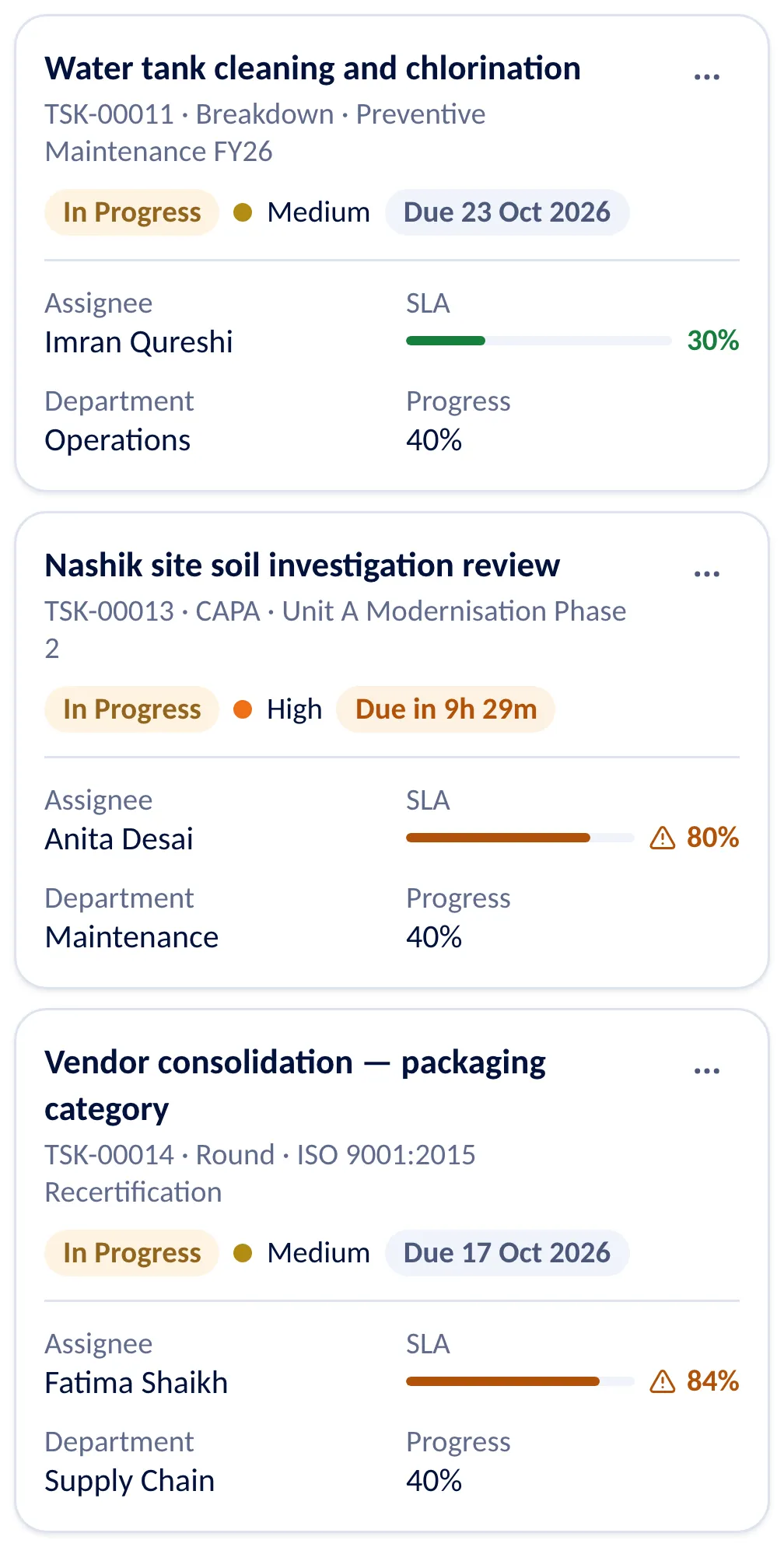
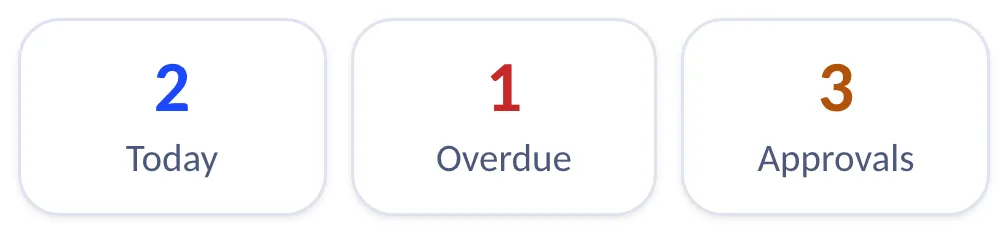
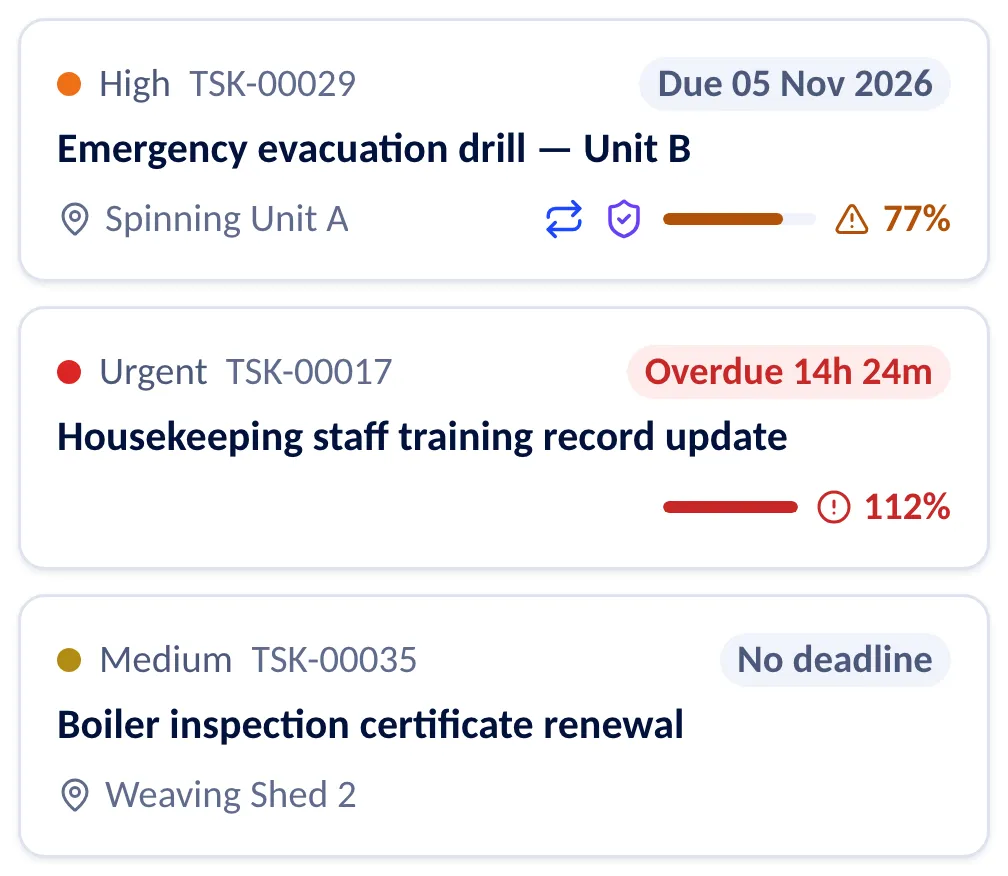
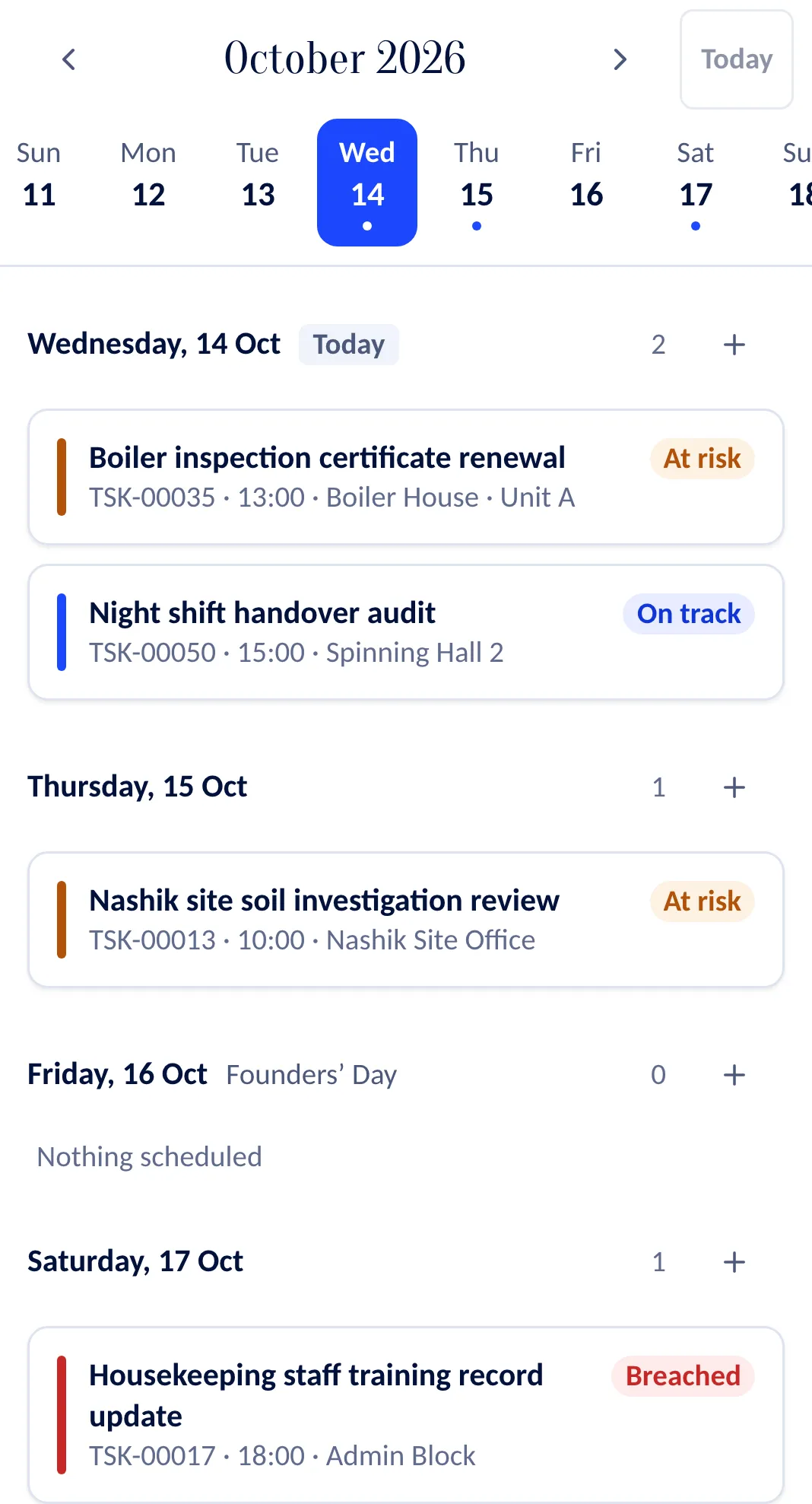
On a phone the product opens on My Work: three figures — today, overdue, approvals — and the member’s tasks as cards, each with its priority, number, due date and location, marks for recurring work and required evidence, and its SLA bar.
- Five tabs: My Work, Calendar, Recurring, Approvals and Alerts
- Start a task, tick its checklist, capture evidence, comment and submit
- Approve or reject from the phone; a rejection asks for the reason
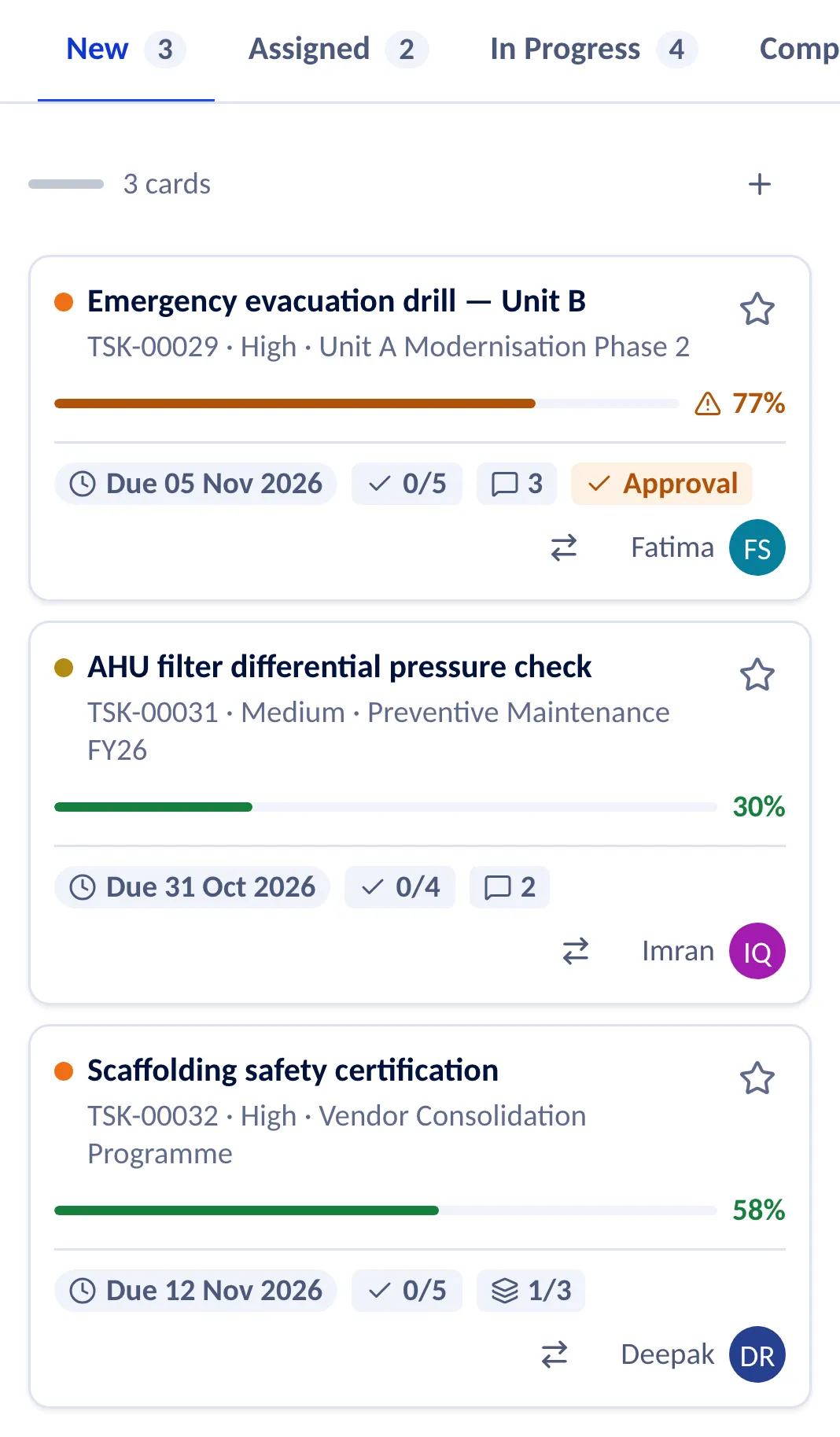
- Tables become cards, and a board shows one stage per screen


Security basics
What protects a company’s data, by the way WorkVigil is built.
Each workspace’s data kept apart
Every record belongs to one workspace — one customer — and the database itself enforces that on every request with row-level security.Passwords and personal details
Passwords are hashed with Argon2id. Email addresses and phone numbers are encrypted at rest.Sign-in and sessions
Sign in with email and password. A session can be revoked, and deactivating a user ends theirs.
See it with your own work
Create your workspace and try it on a project of your own. 14-day free trial — no card needed.